


WRITTEN BY

Product Manager
TABLE OF CONTENT
Today, most daily work happens in the browser, and that also makes it one of the primary sources of risk. Dizzion Halo is designed to solve that problem. I won’t repeat the complete “How the Browser Became the #1 Attack Surface and How Dizzion Halo Fixes It” because my colleague Ruben already covered that brilliantly in his earlier post (highly recommended reading).
Instead, this blog focuses on something different: what an administrator needs to do to get Halo running and what the end-user experience looks like.
By the end, you’ll have a clear picture of the setup steps, the technical requirements, and what day-to-day usage actually feels like.
Browser security, including web content filtering, DLP, browser policy management, and extension control, is often seen as complex or “nice to have.” But as AI tools, SaaS platforms, and web applications have become the core of modern work, secure browsing is now essential for running a business safely. This is especially true in environments with BYO devices, contractors, and the steady stream of security incidents in the news, because “there is always someone who clicks on something they should not.”
Traditional security solutions, including SASE and endpoint protection tools, are not designed to safeguard activities within the browser. They operate at the network or device layer and provide limited visibility or protection once users begin interacting with SaaS platforms and AI applications.
Dizzion Halo takes a different approach. It does not replace your browser; it enhances it. Halo works with the browsers your users already rely on, Chrome, Edge, Firefox, and Safari, making deployment simple and user adoption seamless.
In the sections that follow, I will walk you through the admin preparation steps, how to integrate Halo with your identity provider, how to define and enforce policies, and finally, what the user experience looks like once everything is live.
Customer Organization
When a new customer starts with Halo, they get their own organization (tenant) in the Dizzion Halo environment. This is like the “home base” where all configuration, policies, inventory, security protection overview, analytics, and dashboards are located.
This organization is separate from others, and all policies, configurations, and data are stored securely and encrypted within the Dizzion Halo backplane, ensuring each company maintains complete control over its environment.
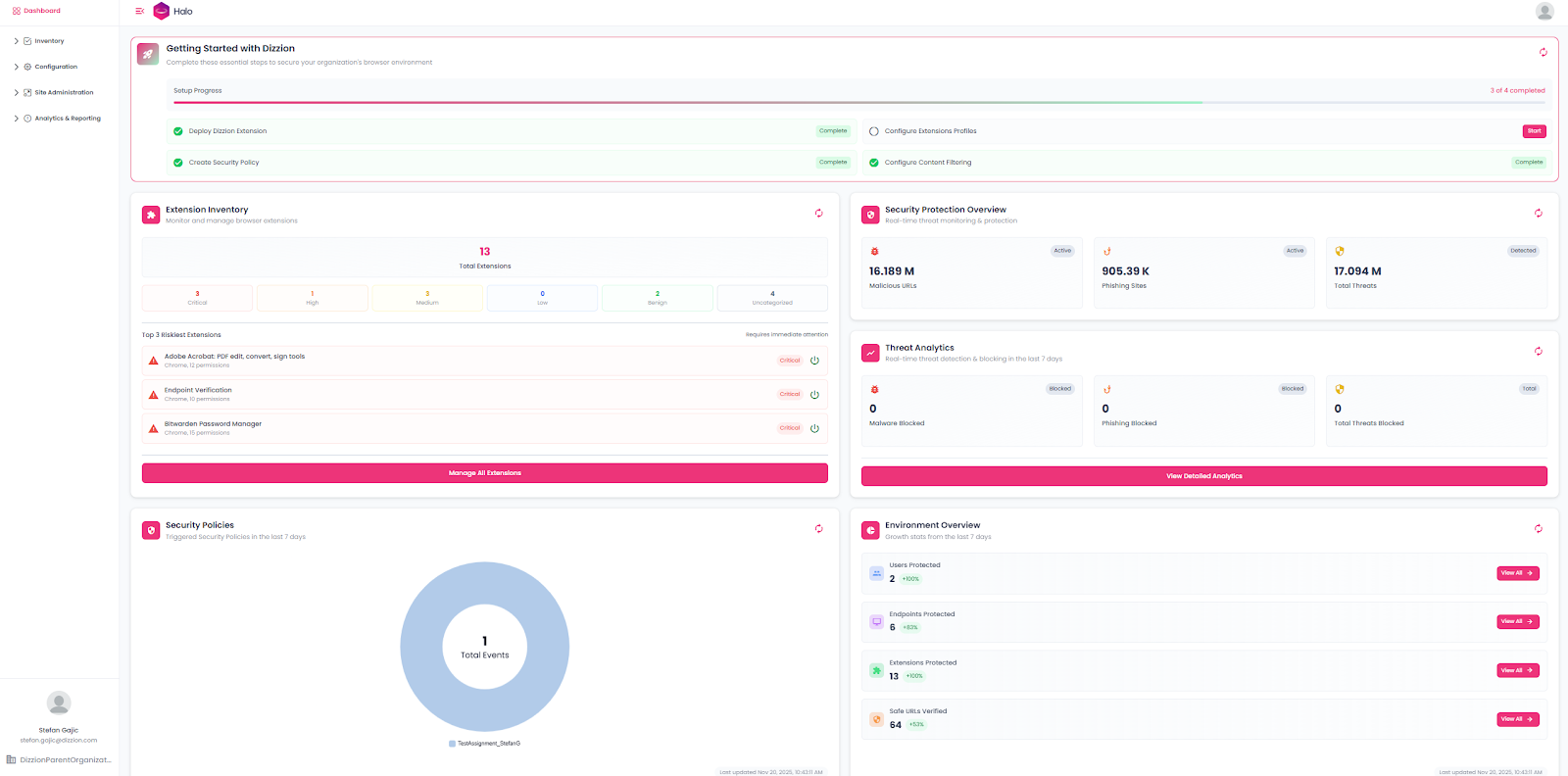
Initial Setup in Console – Site Administration
After the organization is created, the next step is to prepare the basics.
Add Admin Accounts
Invite one or more administrators from your IT team. Make sure that you always have at least two accounts with permission to access the Halo console, so you are not locked out.
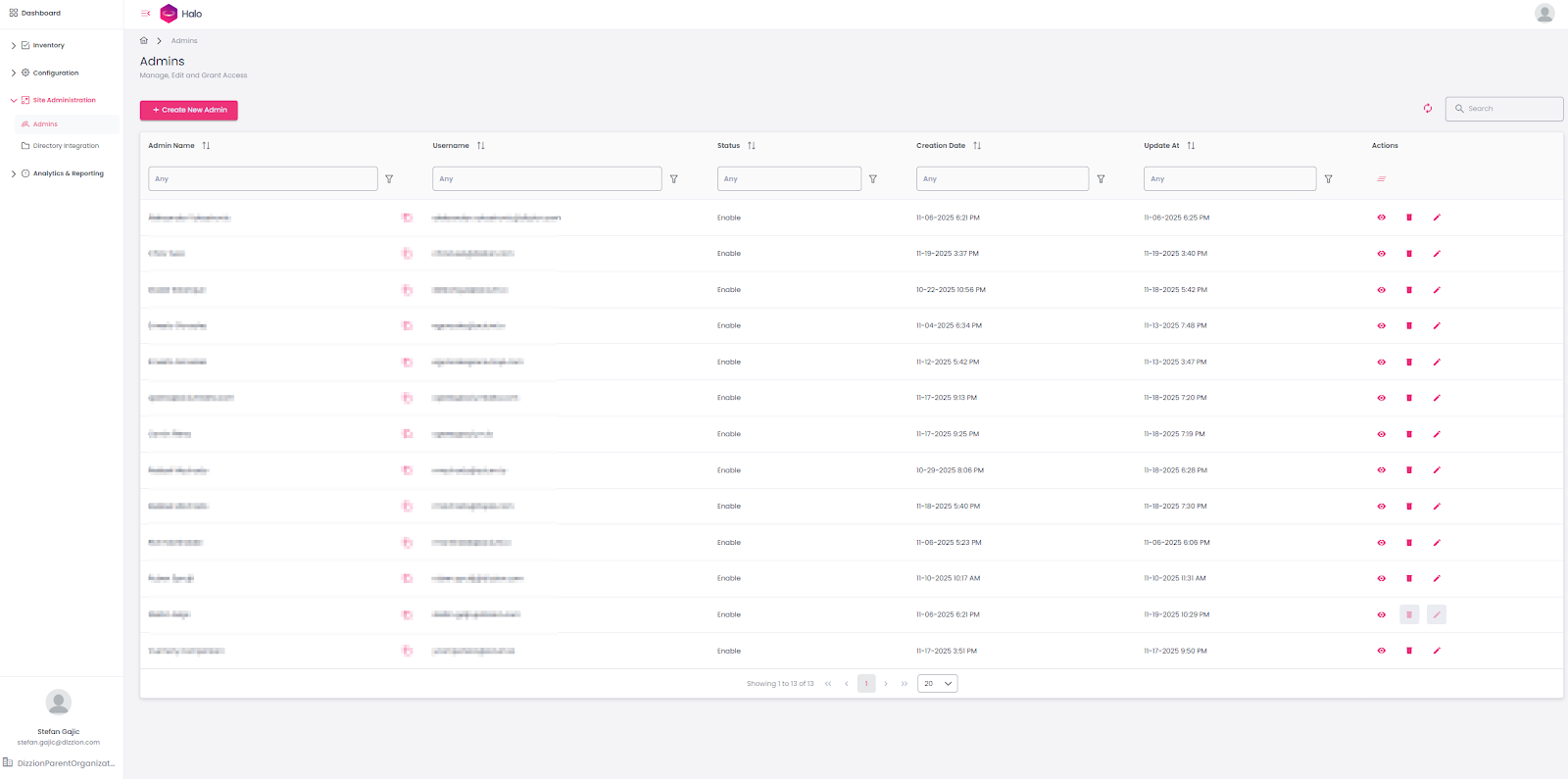
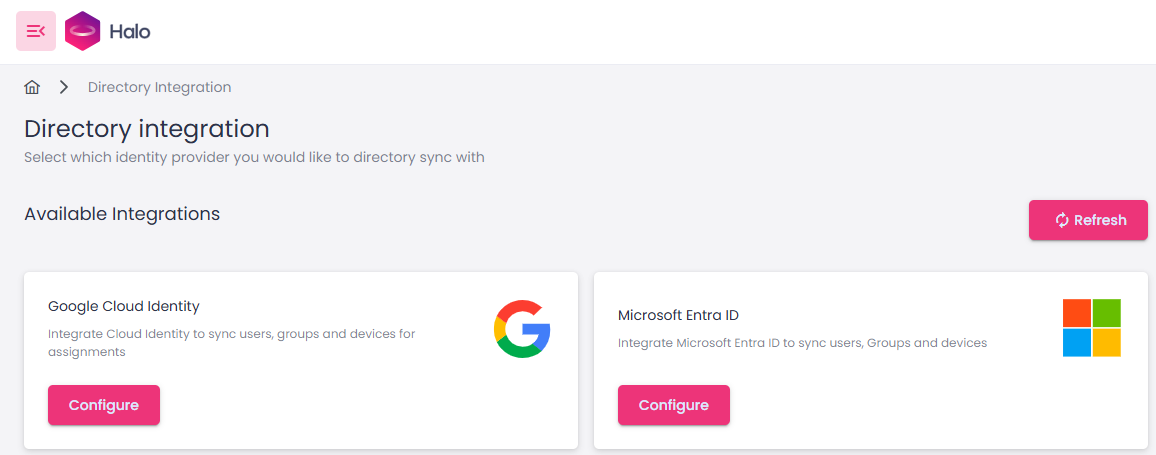
Identity Provider (IdP) Integration
Connect Halo to your SAML 2.0-based IdP, e.g., Entra ID, Okta, Google, Ping, etc.From the console, you can go to Site Administration → Directory Integration and configure Google Cloud Identity or Microsoft Entra ID with just a few clicks. If you are using some other IdP, like Okta, DUO, Ping, and similar, you can work with Dizzion’s support team to help you with the setup.
Once the IdP is configured, it becomes much easier to assign web controls, browser settings, extension profiles, and security levels to different user groups.
Configurations
Now the admin defines what users can and cannot do inside the browser. There are plenty of options and configurations, something that only Dizzion Halo can bring to the table, and here I will just provide a teaser of what you can find in the console.
Web Control Filtering (WCF)
This option lets you create and manage web control profiles for your organization.
When creating a new profile, you start by defining a name and description. In the Site URLs section, you can explicitly allow or block specific websites. You can take an approach by stopping everything and allowing only approved sites, or you can start open and block only what you want to restrict. If you prefer not to manage individual URLs, Halo also lets you use Site Categories, such as Aggressive, Adult, Arts and Entertainment, Business, Careers, Criminal Activities, and many more. Based on customer feedback, the YouTube Filter, which enables control over channels, videos, keywords, and categories for more precise content governance, is also available.
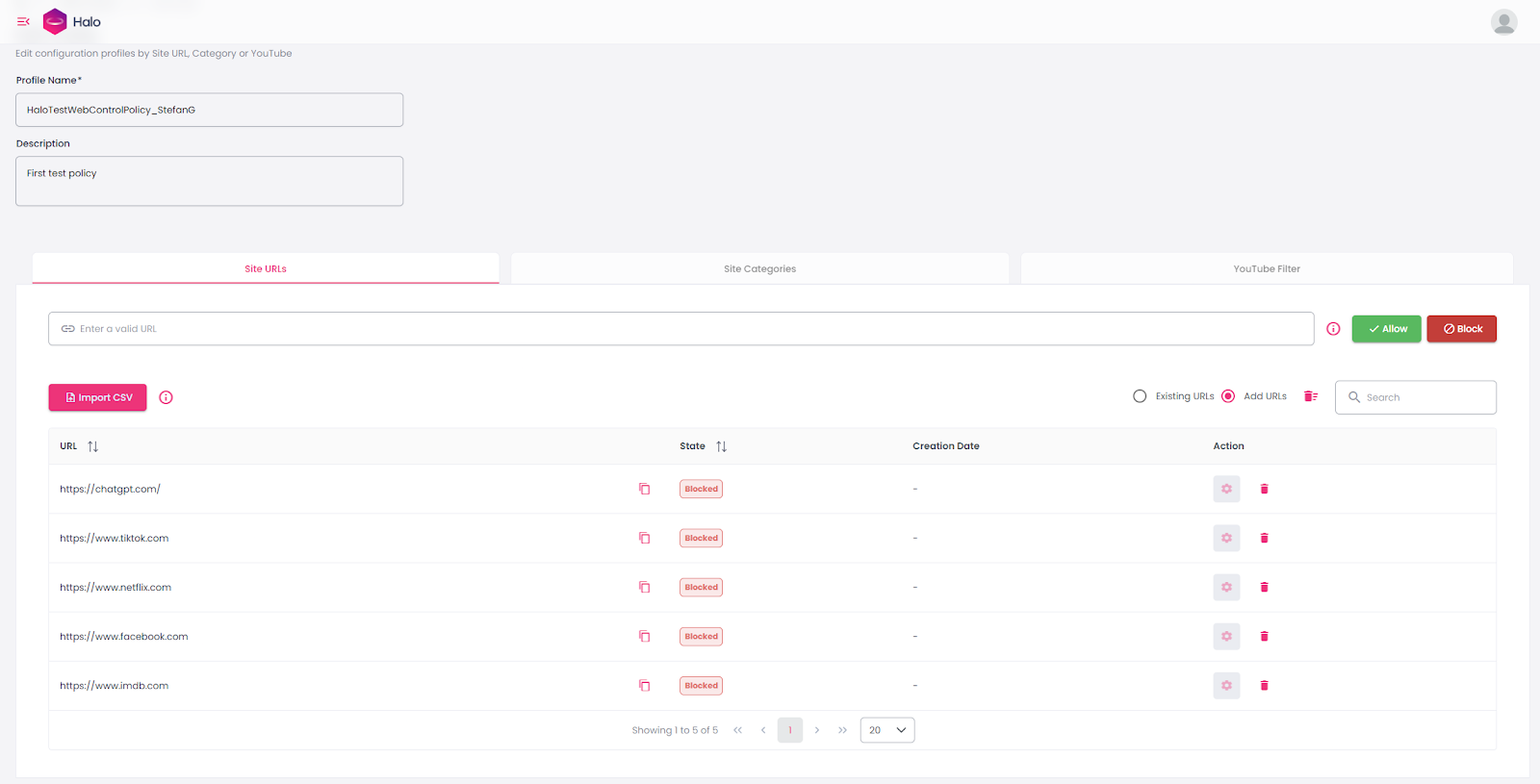
Browser Settings
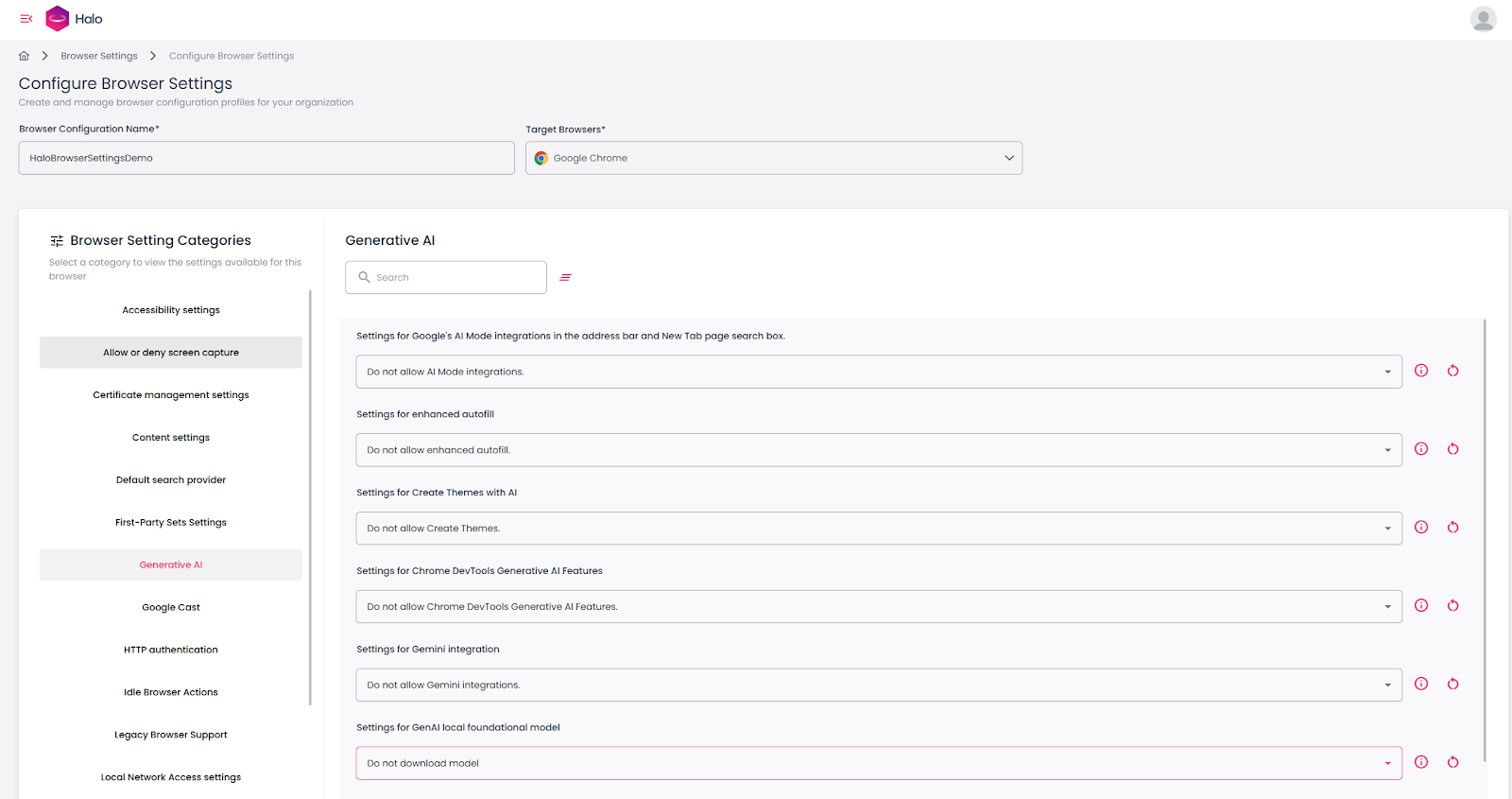
Dizzion Halo allows you to create and manage browser configuration profiles for your organization. It provides a wide range of configuration options, covering security controls, authentication settings, networking, printing, AI-related policies, and much more. In total, Halo exposes hundreds of browser policy settings that can be tailored to different use cases, security requirements, and compliance standards. This catalog continues to grow as Google, Microsoft, and others add new capabilities to their browsers.
Examples of configurable policies include allowing or blocking screen capture, restricting clipboard usage on specific sites, defining the default search provider, controlling access to generative AI tools, configuring HTTP authentication, and managing network and printing behaviour. The goal is to give administrators the flexibility to maintain user productivity while enforcing a significantly stronger security posture.
Extension Profiles
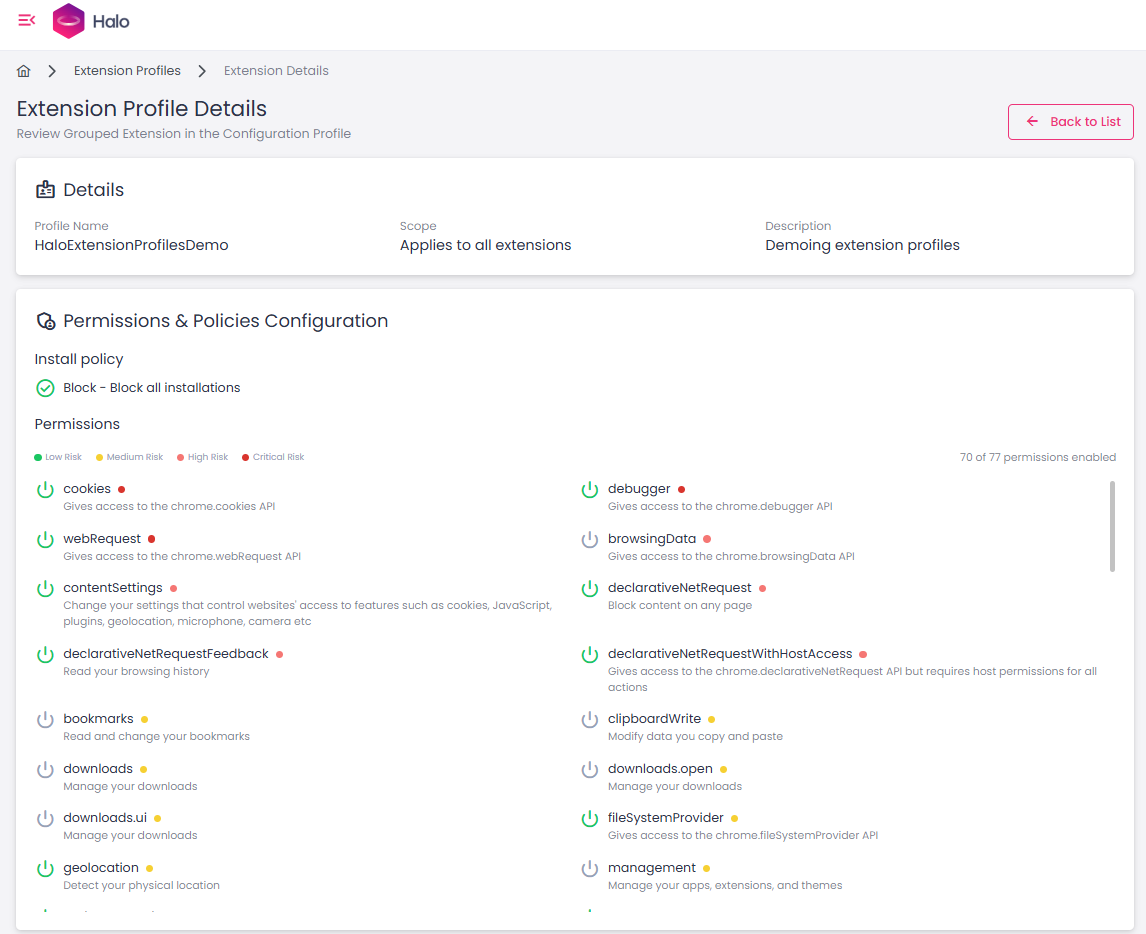
Dizzion Halo can easily manage, allow, and block browser extensions. Halo not only helps you deploy and configure approved extensions, but also continuously monitors extension activity. It tracks what users install, evaluates each extension with a risk score, and gives you the flexibility to block extensions entirely or restrict specific actions they can perform.
This level of control is increasingly essential because browser extensions are among the least visible but highest-risk areas in modern browser environments. Extensions can read web content, capture credentials, interact with corporate SaaS applications, and even exfiltrate data without triggering traditional security tools. Many popular extensions are over-permissioned, poorly maintained, or secretly sold to third parties who turn them into adware or data-harvesting tools. In open environments with BYO devices, contractors or remote workers, these risks grow even further.
By governing extensions centrally and continuously monitoring what users install, Halo helps organizations close a major blind spot, reduce the risk of data leakage, and maintain a safer, more predictable browser environment.
Policy Assignments
After you create browser settings, web controls, and extension profiles, you assign them to individual users or groups. This ensures that each group receives the appropriate level of access and security based on their role, risk level, and responsibilities.
Dashboard, Inventory, Analytics, and Reporting
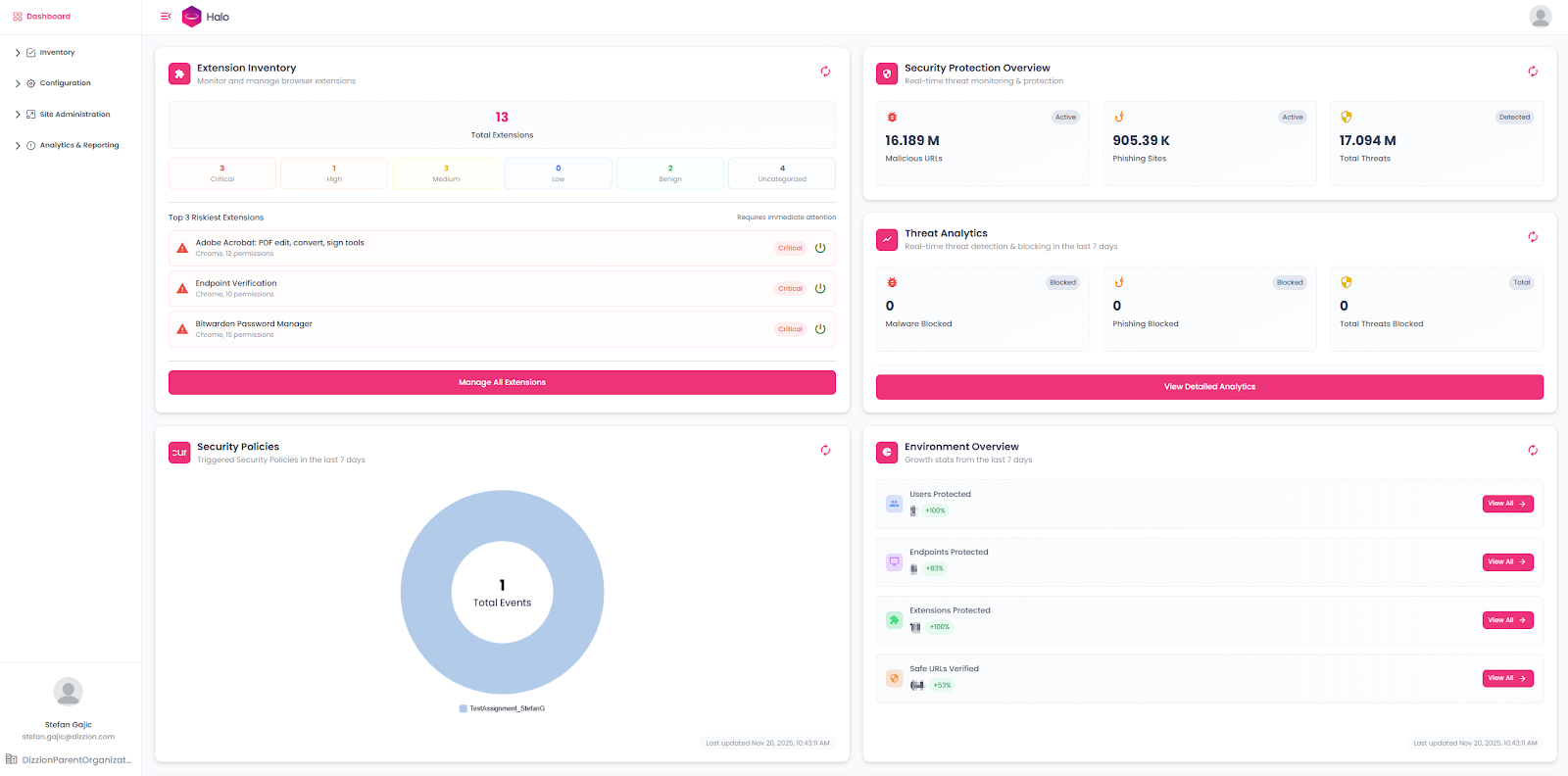
These sections in the console provide powerful visibility and insights for IT and security teams. Halo collects a large amount of browser activity data, then organizes and presents it through dashboards enhanced by generative AI. This allows teams to monitor activity, identify trends, and make informed decisions from day one, with the value of these insights increasing as more data is collected over time.
Extension and sensor deployment Options
The Dizzion Halo Browser Extension and optional Sensor work together to provide secure, policy-controlled access to web and SaaS applications. IT administrators can deploy the Halo Extension and Sensor through a range of enterprise management tools, depending on their environment and policy requirements. Supported deployment methods include:
- Microsoft Intune for Windows and macOS
- Microsoft SCCM
- Group Policy Objects (GPO)
- Any Chromium-based browser management platform, such as Chrome Enterprise or Edge for Business
- Manual installation from the Chrome Web Store or Microsoft Edge Add-ons, if allowed by IT
End User Perspective
From the user side, there is no change.
- They open e.g. Chrome or Edge as usual.
- They log in with their credentials, and the extension activates automatically, applying the organization’s configured Halo security policies. Halo applies the rules in the background.
What users see and how they interact with Dizzion Halo depends on the configurations and security policies defined by their IT administrators. Halo enforces these policies directly inside the user’s existing browser, so the experience feels natural and consistent.
Examples of what users may encounter include:
- Blocked websites: If a user attempts to open a restricted site, Halo displays a clear block page explaining why access is denied.
- File restrictions: If downloading a file is not permitted, the download is stopped, and the user receives a short notification.
- Copy / Paste to AI service, clipboard, printing, and screenshot controls: These rules apply instantly and automatically, without requiring user action.
Importantly, users do not need to switch browsers or learn new workflows. The goal is strong security without disruption. Meanwhile, Halo continuously monitors millions of threats in real time, helping protect users from malicious sites, risky behaviour(s), and emerging attacks.

Conclusion
Setting up Dizzion Halo is straightforward. Customers receive their own organization, configure administrative access and identity integration, then create profiles for browser settings, web controls, and extensions. These profiles are assigned to the appropriate user groups, ensuring that each team receives the right level of protection. Once deployed, users continue working in the browsers they already know, while security teams gain visibility, control, and confidence. Halo is easy to start with, simple to manage, and highly effective at keeping your browsers secure.
Ready to See It in Action?
With Dizzion Halo, you can secure every browser, for every user, without changing how they work. Contact us today to see how Halo can close your SaaS and AI blind spot.
About the Author

Dizzion provides secure, high-performance digital workspaces that enable organizations to support teams anywhere. Our platform blends enterprise-grade security, compliance, and performance with flexible deployment options including AWS, Microsoft Azure, Google Cloud, IBM Cloud VPC, Nutanix on-premises, or hybrid models. Founded in 2011 and headquartered in San Antonio, Texas, Dizzion serves customers across multiple industries from healthcare and finance to education and government. For more information, visit www.dizzion.com.
Product Manager
Stefan Gajic is a Product Manager at Dizzion, working day-to-day on improving DaaS, Cloud PC, and other Dizzion products and services. With a strong background in multi-cloud architecture, IT infrastructure, and enterprise solutions; Stefan collaborates closely with engineering teams, customers, and partners to shape features that enhance both product capabilities and user experience. He is passionate about delivering practical solutions that simplify complex environments from DaaS and Cloud PC platforms to secure browser technologies and beyond. Outside of work, Stefan enjoys watching and playing basketball, traveling, and spending time with his dog and family.
.png)
Subscribe to our newsletter
Register for our newsletter now to unlock the full potential of Dizzion's Resource Library. Don't miss out on the latest industry insights – sign up today!

Dizzion values your privacy. By completing this form, you agree to the processing of your personal data in the manner indicated in the Dizzion Privacy Policy and consent to receive communications from Dizzion about our products, services, and events.